 Booklet Imposer
PDF Booklet Maker
To print a PDF as a booklet, open it in Booklet Imposer: the pages are rearranged into saddle-stitch order in your browser, and you download one PDF to print double-sided, fold, and staple. Your file never leaves your device, and gutter and creep controls are there for thicker booklets.
Files never leave your browser
What saddle-stitch imposition does
A saddle-stitched booklet is made from sheets of paper that are stacked, folded once down the middle, and stapled through the fold. It is how most zines, event programs, and small handouts are bound. The catch is that the pages can’t be printed in their normal order. On an 8-page booklet, the outer sheet has to carry page 8 next to page 1 on one side and pages 2 and 7 on the other, and the inner sheet carries 6 and 3, then 4 and 5.
Working that out by hand is fiddly and easy to get wrong. This tool does it for you. It never changes your content; it only moves each page to the right spot on the right sheet, so the booklet reads 1, 2, 3 once it is folded.

How to make a booklet, step by step
- Open your PDF with the button above, or try one of the numbered sample files. It is processed in your browser and never uploaded.
- Check the page count. Each sheet holds four pages, so if your total isn’t a multiple of 4, blank pages are added at the end and the tool tells you how many. Adding your own blank or notes pages to the source PDF gives you more control.
- Pick a paper size. Auto places two of your pages side by side at their original size, which suits A5 pages on A4 paper or half-letter pages on US Letter. Choose A4 or Letter if the result is too big for your printer.
- Preview the sheets. Sheets view shows the front and back of every sheet; Spreads view shows the booklet as a reader will see it.
- Export and print the downloaded PDF.
Printing tips that save paper
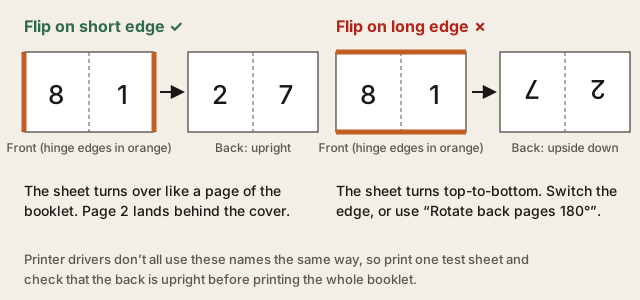
- Print double-sided and flip on the short edge. The sheets are landscape with two pages side by side, so the printer should turn them over like a page of the booklet. Driver labels vary; if the back comes out upside down, switch edges or turn on “Rotate back pages 180°”.
- Print at 100% / actual size. “Fit to page” shrinks the sheet so the pages no longer meet at the fold.
- Leave your printer’s booklet mode off. The file is already in booklet order; booklet mode would shuffle it a second time.
- Print one test sheet first. Fold it and check the page numbers before printing the whole stack.
Folding and stapling
Keep the printed sheets in order and fold them all together, not one by one. Press the fold flat, then put two or three staples through the spine from the outside. A long-reach stapler makes this easy. On thicker booklets, add a few millimeters of gutter so text stays clear of the staples, and a little creep so the inner pages’ margins match the outer ones.
The booklet guides cover each step in more detail, starting withwhat saddle stitch is andhow to print a booklet. Printing terms are explained in theglossary.
FAQ
How do I print a PDF as a booklet?
Open the PDF in Booklet Imposer, check the sheet preview, and export. Print the downloaded PDF double-sided with flip on short edge at 100% scale, keep your printer's booklet mode off, then fold the sheets together and staple through the fold.
Does my PDF get uploaded?
No. Imposition runs in this browser, and the finished file is saved straight to your device. Your PDF is never sent to a server.
Why are blank pages added?
Each folded sheet holds four pages, so a saddle-stitched booklet needs a page count that is a multiple of four. If yours isn't, blank pages are added at the end and the tool tells you how many.
Should I also turn on my printer's booklet mode?
No. The exported PDF is already in booklet order. Turning on the printer's booklet mode would rearrange the pages a second time and scramble them.
Is it free?
Yes. Booklet Imposer is free to use, with no account, no sign-up, and no watermark. The site is supported by ads, and ads never block the export.
More questions are answered in the FAQ.
Last updated: