 Booklet Imposer
How to Print a Booklet
Last updated:
When this workflow fits
To print a booklet from a PDF, impose the pages into booklet order first, then print the result double-sided with flip on short edge at 100% scale, fold all the sheets together, and staple through the fold. Use this when you already have a multi-page PDF—a zine, a class pack, a program, a small catalog—and want a folded booklet, not a stack of single-sided leaves. Saddle stitch means the sheets nest, you fold once, and you staple through the fold. It is the right bind for short books. It is the wrong bind for a 200-page novel.
Home printers can do this if you impose first. Imposition is the mapping from reader order to sheet order. If you skip it and hit your printer’s “booklet” checkbox on an already imposed file, pages shuffle twice and the job is waste paper.
Materials
You need a duplex printer or the patience to flip by hand, paper that folds without cracking (80–120 gsm is typical), and a long-reach stapler or a saddle stapler. For a thick booklet, test one signature before you commit the whole ream. Card covers are optional; this tool treats page 1 as the cover through the standard formula, not a separate cover plate.
Export with this tool
Open the PDF booklet maker. Drop the file. Processing stays in the browser. If the page count is not a multiple of four, blank pages are added at the end and named in the banner. Choose Auto paper to keep source size, or A4 / Letter landscape if your printer cannot take a 2-up sheet of the original. Set a per-side gutter if type sits too close to the staple. Add total creep for thick stacks so inner sheets do not look like they drift toward the trim.
Export PDF, print quality. The download is yourfile-booklet.pdf. That file’s page 1 is sheet 0 front, page 2 is sheet 0 back, and so on, outer sheet first.
Printer duplex settings
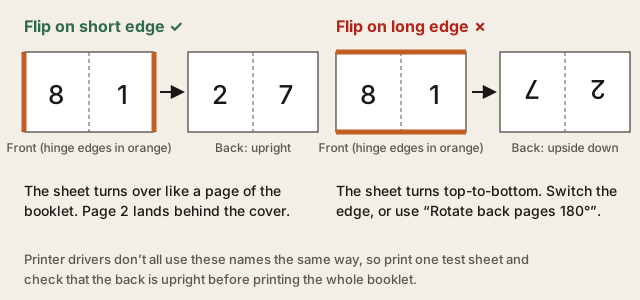
Print double-sided. For a landscape sheet with two pages side by side, choose Flip on short edge: the printer turns the sheet over the way you turn a page of the finished booklet. Print at 100% / actual size, not “fit to page.” Do not enable your printer’s own booklet mode. Keep the PDF’s colors unless you want a cheaper grayscale proof from the printer dialog.
If the back comes out upside down, your printer (or its driver) is turning the sheet the other way. Switch to the other flip edge, or turn on Rotate back pages 180° in the tool and export again. Printing one test sheet first saves a lot of paper.
Fold and stitch
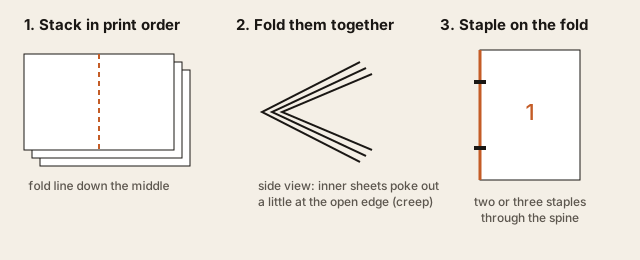
Keep the printed stack in order. Do not reshuffle. Fold all sheets together as one signature. Jog the head. Staple on the fold, two or three staples for a letter-size booklet. Trim the fore-edge only if you planned bleed and you have a cutter. For a home job, a bone folder and a long-reach stapler are enough.
For paper choice, grain direction, and stapling tips, see paper, folding, and stapling.
Common failures
Back upside down: wrong flip edge. Pages reading 1, 8, 7, 2: you printed as simplex or the stack was turned. Type in the staple: raise gutter. Outer pages look tighter at the trim than inner pages: raise total creep. Printer scaled the sheet: disable fit-to-page. These are geometry problems. This site is not a RIP and will not fix ICC profiles or spot colors.
How to print a PDF as a booklet: 4 methods compared
You can impose a PDF into booklet order four ways: your printer’s booklet mode, the booklet option in a desktop PDF reader’s print dialog, desktop imposition software, or an online imposer such as Booklet Imposer. Whichever you use, the result is printed double-sided, flipped on the short edge, at 100% scale, then folded and stapled. Here’s how the four compare.
| Method | Control and preview | Works on any printer? | Cost | Skill | File uploaded? |
|---|---|---|---|---|---|
| Printer driver booklet mode | Little; layout differs by driver, often no sheet preview | Only printers whose driver has it | Free | Low | No |
| Booklet option in a desktop PDF reader’s print dialog | Some (binding side, page range) | Any printer, if you have a reader with this option | Free to paid, depends on the reader | Low | No |
| Desktop imposition or layout software | Full (creep, marks, signatures) | Yes | Usually paid | High | No |
| Online imposer: Booklet Imposer | Sheet and spread preview, gutter, creep, bleed, rotate back pages | Yes. You get one PDF you can print anywhere | Free to use | Low | No. It runs in your browser |
| Online imposers in general | Varies | Yes | Varies | Low | Many upload your file, so check |
1. Your printer’s booklet mode
Many printer drivers have a “booklet” checkbox that reorders pages as they print. Good for: a quick one-off on a printer that supports it. Limits: every driver words and lays it out differently, there’s often no preview of each sheet, and the file isn’t saved in booklet order, so you can’t send it to another printer.
2. The booklet option in a PDF reader’s print dialog
Some desktop PDF readers offer a Booklet setting in their print dialog (binding side, sheets per booklet). Good for: people who already have such a reader. Limits: options vary by reader and version, and there is little control over gutter or creep for thicker booklets.
3. Desktop imposition or layout software
Professional prepress and layout programs can impose signatures with creep, marks, and bleed. Good for: print shops and designers. Limits: usually paid, with a learning curve, and far more than a zine or event program needs.
4. An online imposer: where Booklet Imposer fits
Open the PDF in Booklet Imposer. Pages are moved to the right spot on the right sheet so the booklet reads 1, 2, 3 once folded; if the page count isn’t a multiple of four, blank pages are added at the end and the tool tells you how many. Pick Auto, A4, or Letter paper, preview the Sheets and Spreads views, add gutter or creep if the booklet is thick, and export one PDF. It runs in your browser and the file is never uploaded; it’s free to use with no account and no watermark. Limits: it handles page layout only. It doesn’t change colors, isn’t a prepress tool, and binds on the left (no right-to-left mirroring yet). Files up to 200 MB and 400 pages.
Then print double-sided, flip on short edge, at 100% / actual size, and leave the printer’s booklet mode off. The file is already in booklet order.
Which should you pick?
- One quick copy, and your printer has a booklet mode: the printer driver.
- You want a file you can print anywhere, a preview of each sheet, or more margin at the staples: an online imposer.
- A print-shop job with marks and signatures: desktop imposition software.
More detail: double-sided booklet printing, making a booklet from a PDF, gutter vs creep, and what saddle stitch is.
Questions
What printer settings do I use for a booklet?
Print double-sided and choose flip on short edge. Print at 100% / actual size, not fit to page, and do not enable your printer's own booklet mode.
Why is the back of my sheet upside down?
Your printer or its driver is turning the sheet the other way. Switch to the other flip edge, or turn on Rotate back pages 180° in the tool and export again.
What paper should I use?
Paper that folds without cracking; 80–120 gsm is typical. For a thick booklet, test one signature before you commit the whole ream.
What do I need to staple a booklet?
A long-reach stapler or a saddle stapler. Fold all sheets together as one signature and put two or three staples on the fold for a letter-size booklet.
What's the easiest way to print a PDF as a booklet?
Impose the PDF into booklet order first, then print it double-sided with flip on short edge at 100% scale and fold and staple the sheets. Booklet Imposer does the imposition in your browser and your file isn't uploaded; a printer's built-in booklet mode is the other quick option if your driver has one.
Can I use my printer's booklet mode and an imposed PDF together?
No. An imposed PDF is already in booklet order. Turning on the printer's or PDF viewer's booklet mode would rearrange the pages a second time and scramble them.
Why does a booklet need a multiple of four pages?
Each folded sheet holds four pages, two on each side. If the count isn't a multiple of four, blank pages are added at the end.
Can I print a booklet without a duplex printer?
Yes. Print the odd pages of the exported PDF (the fronts of each sheet), put the stack back in the tray, then print the even pages (the backs). How to reload the stack depends on your printer, so test with one sheet.